
In this document
You'll learn which reports are available in Solargis Evaluate, how to generate project reports (site assessment, full PV evaluation, or review-only variants), and how to download and archive them.
Solargis Evaluate provides PDF reports for your project. You can generate reports yourself from the project data and energy systems, for example a site assessment or a full evaluation of your PV project. Solargis also delivers reports for the services you ordered, such as site adaptation or soiling loss assessment. All reports are available in the Download > Reports section of your project.
If you're looking for solar, meteo, or energy system data, see Evaluate data downloads.
Prerequisites
An active Solargis Evaluate account.
Admin access for editing purposes.
A project created within Evaluate with a PV-configured system.
Available reports
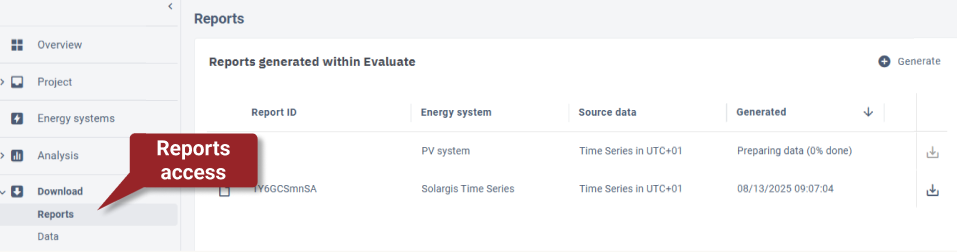
Reports are listed in two tables in the Download > Reports section, based on their origin.
Table | What it shows | Examples |
|---|---|---|
Reports generated within Evaluate | PDF reports you generate from your project data and energy systems. |
|
Reports delivered with Solargis services | Reports delivered by Solargis for services you ordered on the Data & services page. You can't regenerate, archive, or delete them. |
|
Generating reports
On the Reports page:
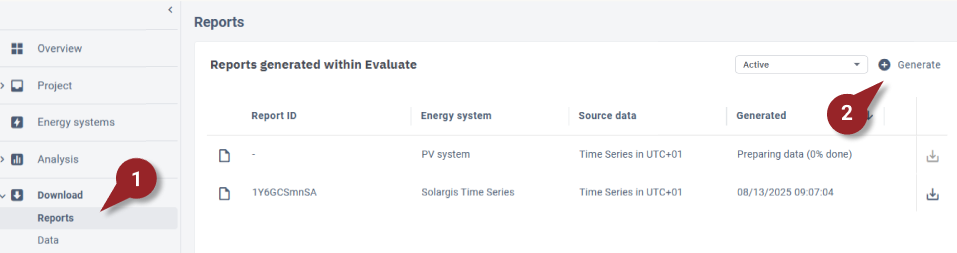
Go to the Downloads section of your project and select Reports.
Click the “Generate” button inside the Reports table.
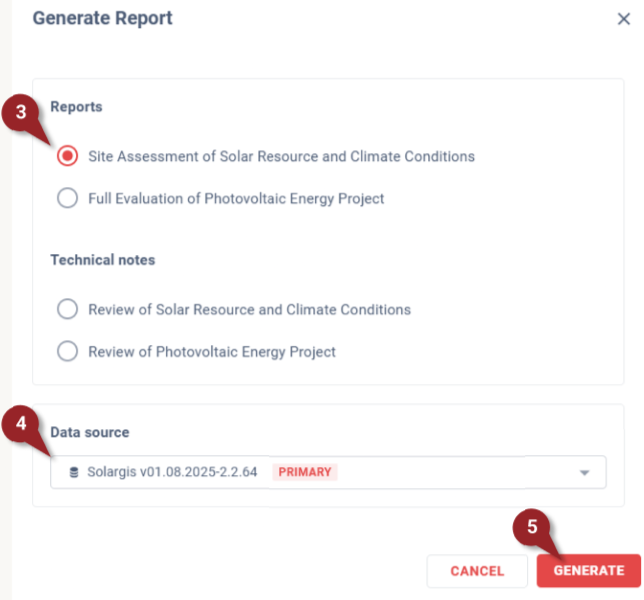
Select the report type or technical note you want to generate in the new pop-up. Available report types are (subject to energy systems created):
Site assessment of solar resource and climate conditions.
Full evaluation of photovoltaic energy project.
Review of solar resource and climate conditions.
Review of photovoltaic energy project.
Choose the required dataset that you want to use in the report. You can use your site adapted data as well.
Click “Generate” to initiate the report generation.
Once you submit the request, your report will start generating in the background. The progress can be tracked in the Generated column in the Reports table.
Downloading reports
Filtering the reports
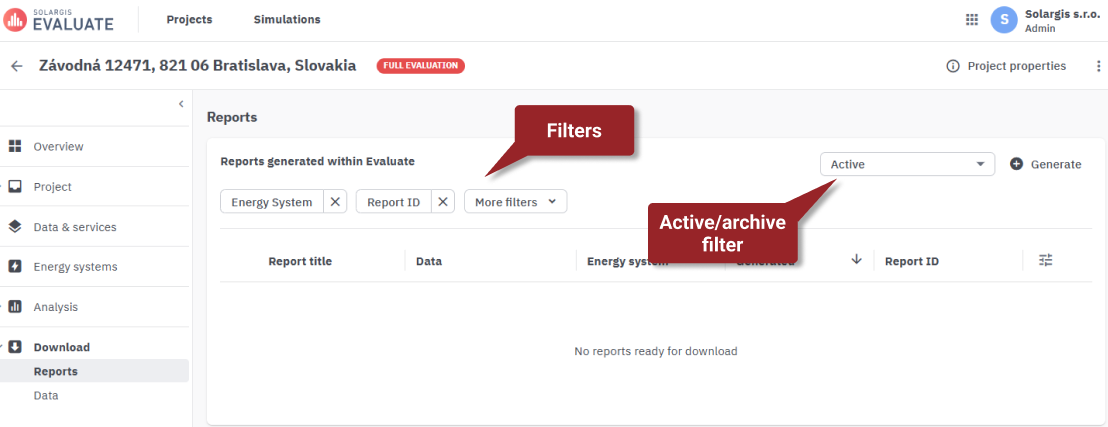
You can use filters to filter your reports. You can select which filters to show by clicking the “More filters” and selecting the required filter. The system will add the filter to the table and you can use it to filter the reports. You can further filter the reports by active or archived.
Downloading a report
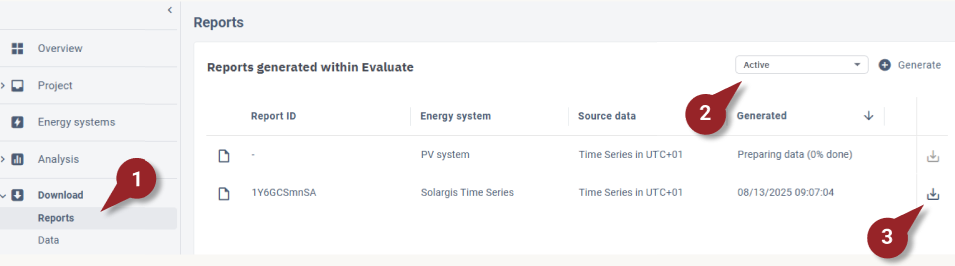
Go to the Download section of your project and select Reports.
Use the Active/Archived filter to find the report you want to download.
Click the download
 icon of the report you want to download.
Note: Reports delivered with Solargis services can also be downloaded directly from the service card in Data & services > Solargis services. See Downloading delivered service outputs.
Archiving reports
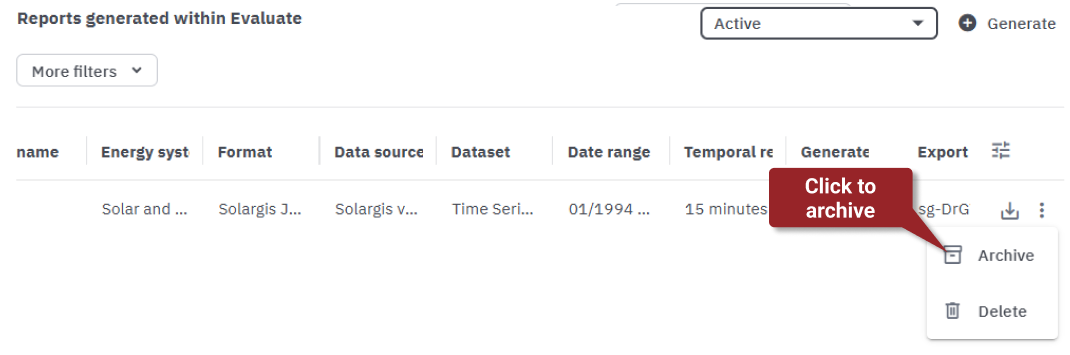
If your list contains many reports, consider archiving the ones you no longer need. This keeps the list shorter and easier to navigate.
To archive a report, click its three-dot menu and select “Archive”. The report will be archived.
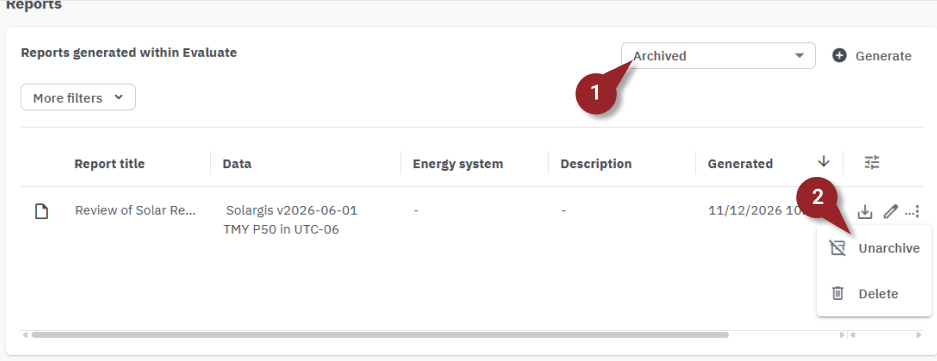
If you want to reverse the process - unarchive the archived report:
Display the archived reports using the dropdown at the top-right of the table.
Click the three-dot menu of the archived report and select “Unarchive”. The system will put the report back into the active reports.
Note: You can archive only reports you generated. Reports delivered with Solargis services can't be archived.